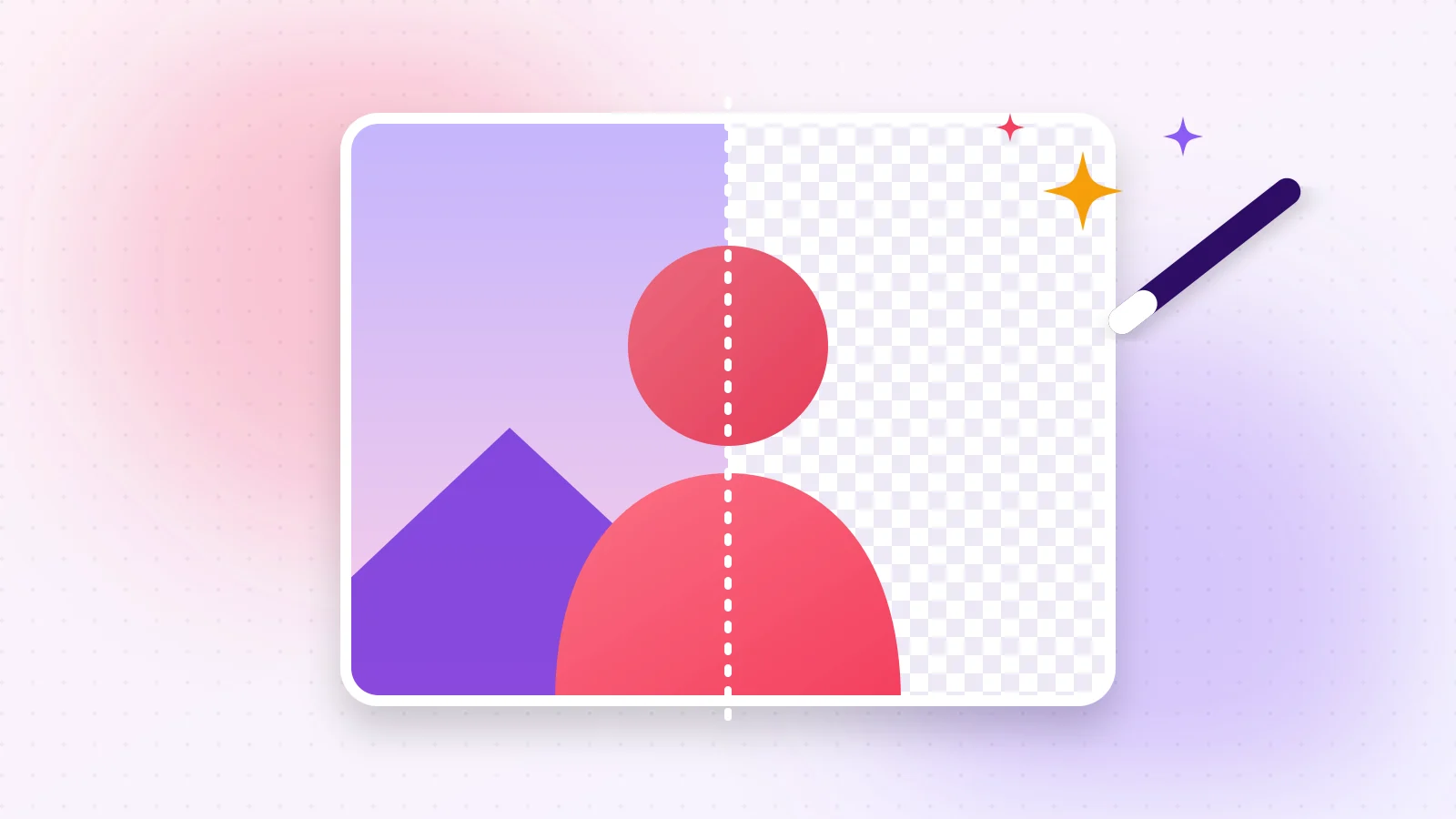
A clean cut-out makes any photo look professional: product images for an online shop, a profile picture with a fresh colour behind it, or a logo dropped onto a slide. Doing it by hand takes ages — automatic background removal does it in seconds.
01How it works
An AI model trained on thousands of images recognises the main subject — a person, an animal or a product — and separates it from everything behind it. The model runs directly in your browser, so your photo is never uploaded.
02Remove a background in 3 steps
- 1Step 1Open Remove Background and drop your photo (JPG, PNG or WebP).
- 2Step 2Wait a moment while the subject is detected.
- 3Step 3Download the result as a transparent PNG, or pick a white background.
AI
Try it now
Remove Background
Automatically remove the background of an image.
03Tips for the best cut-out
- Use a photo where the subject is in sharp focus and clearly separated from the background.
- Good, even lighting gives cleaner edges, especially around hair.
- Larger photos keep more detail around fine edges.
04What to do next
- Trim the empty space around the subject with Crop Image.
- Make the PNG lighter for the web with Image Compress.
- Need another format? Convert Image switches between PNG, JPG and WebP.
Frequently asked questions
Yes, completely free with no watermark and no sign-up.
No. The AI model is downloaded once and runs on your device; your photo stays with you.
PNG (and WebP). JPG does not support transparency, so it gets a solid background.
Was this guide helpful?
You finished the guide!
Next guide: Compress Images for Your Website Without Losing Quality