Images are usually the heaviest part of a web page. A single photo straight from a phone can weigh 4–8 MB — more than the rest of the page combined. Lighter images mean faster pages, happier visitors and better search rankings.
01Size first, then compression
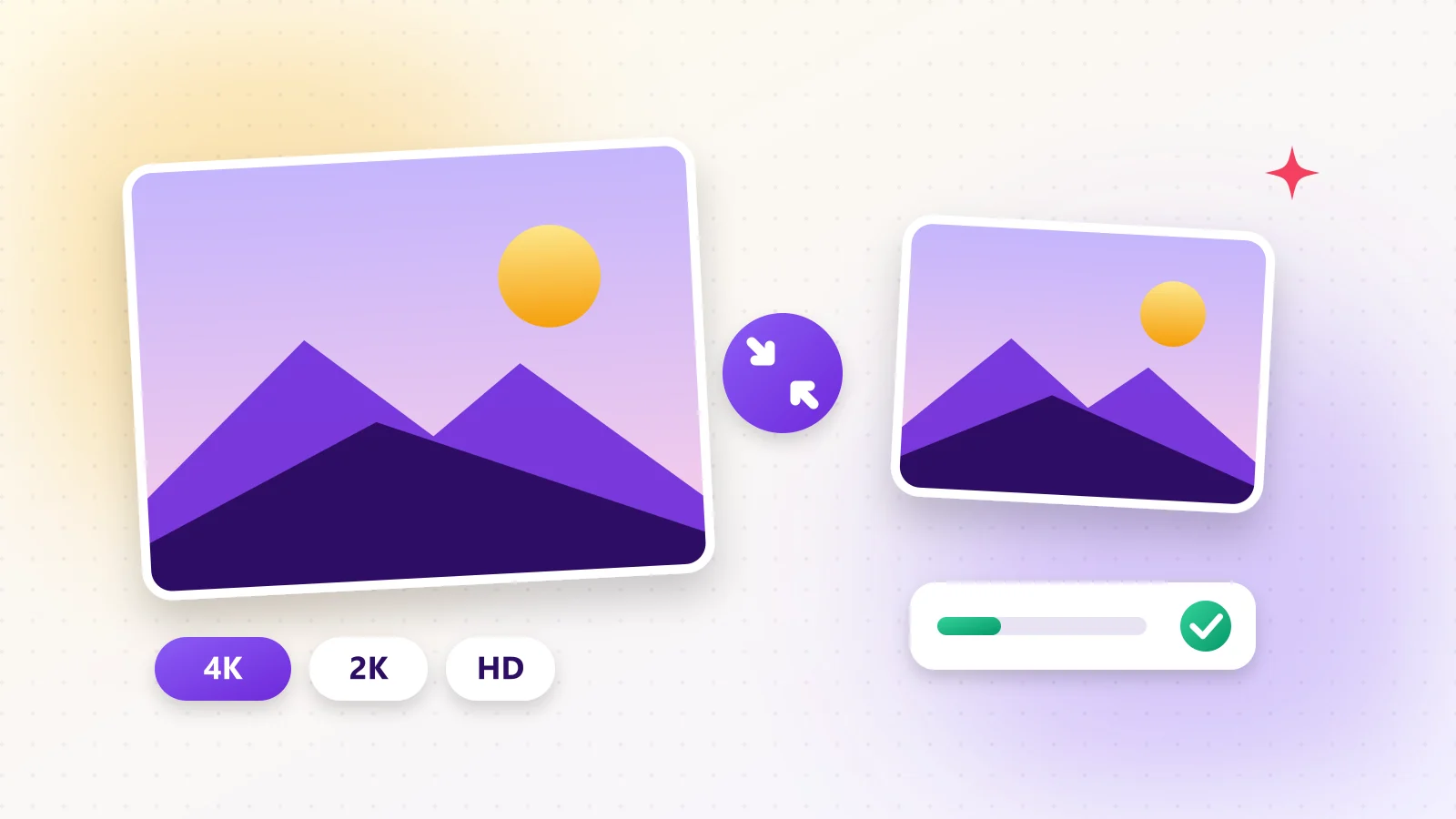
The biggest win is the right dimensions. A 4000-pixel-wide photo shown in an 800-pixel column wastes most of its data. Good targets:
- HD (1280 px) for content images and blog posts
- Full HD (1920 px) for full-width hero images
- 2K / 4K only where people will zoom in, such as product galleries
02Compress images in 4 steps
- 1Step 1Open Image Compress and drop one or many images.
- 2Step 2Choose a maximum size — you'll see the exact result, for example 4032×3024 → 1920×1440.
- 3Step 3Pick the output format and quality.
- 4Step 4Drag the before/after slider to compare, then download.
Try it now
Compress Image
Reduce the size of JPG, PNG and WebP images.
03Which format should I use?
- JPG — photos, when you need maximum compatibility.
- WebP — photos and graphics on websites; the best all-rounder.
- PNG — logos, screenshots and images that need transparency.
04Related tools
Resize to exact pixels with Resize Image, change formats with Convert Image, and turn iPhone photos into JPG with HEIC to JPG.
Frequently asked questions
Usually 60–80% for phone photos, especially combined with resizing to the size you actually display.
Yes. Drop a whole batch and download them all together.
No. Everything runs in your browser.
Was this guide helpful?
You finished the guide!
Next guide: Remove the Background From an Image in One Click