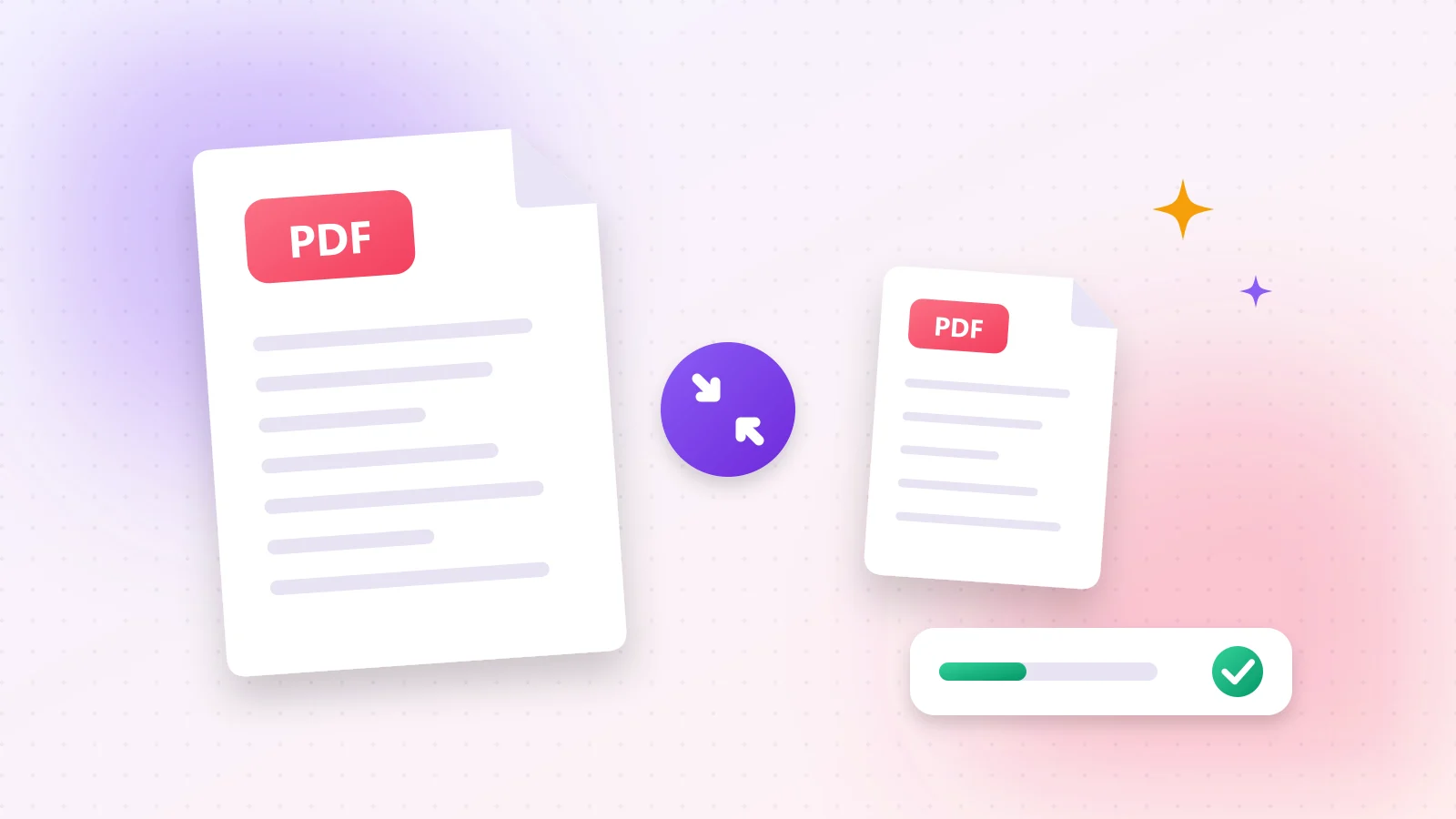
Email attachments are capped at around 20–25 MB, and many upload forms accept only 2–10 MB. A scanned contract or a photo-heavy report easily goes past that. The good news: most PDFs carry far more weight than they need, and you can remove it without making the document look worse.
01Why are PDFs so large?
- High-resolution images — photos and scans are usually saved at print quality (300+ DPI) even when you only read them on screen.
- Embedded fonts — every font used in the file is packed inside it.
- Leftover data — editing history, hidden layers and metadata add up quickly.
02Compress a PDF in 4 steps
- 1Step 1Open the PDF Compress tool and drop your file onto the page.
- 2Step 2Pick a level: Recommended keeps text perfectly sharp and is right for almost every file.
- 3Step 3Press Start and wait a few seconds — the work happens on your device.
- 4Step 4Check the new size and download the smaller PDF.
03Tips for the smallest possible file
- Compress before you merge: many small optimised files make a lighter result.
- For scans, crop away empty margins first with PDF Crop.
- Remove pages nobody needs with Delete PDF Pages.
- If images matter more than text, try Image Compress on the pictures before building the PDF.
04Will the text stay sharp?
Yes. Text and vector graphics are not pixels, so they stay crisp at any zoom level. Only photos are re-encoded, and at the recommended level the difference is practically invisible on screen and in normal printing.
Frequently asked questions
It depends on the content. Photo-heavy files and scans often shrink by 50–90%, while text-only PDFs are already small and change less.
Yes. The file is processed locally in your browser and never sent to a server.
Compress them one by one, or merge them first and compress the combined file.