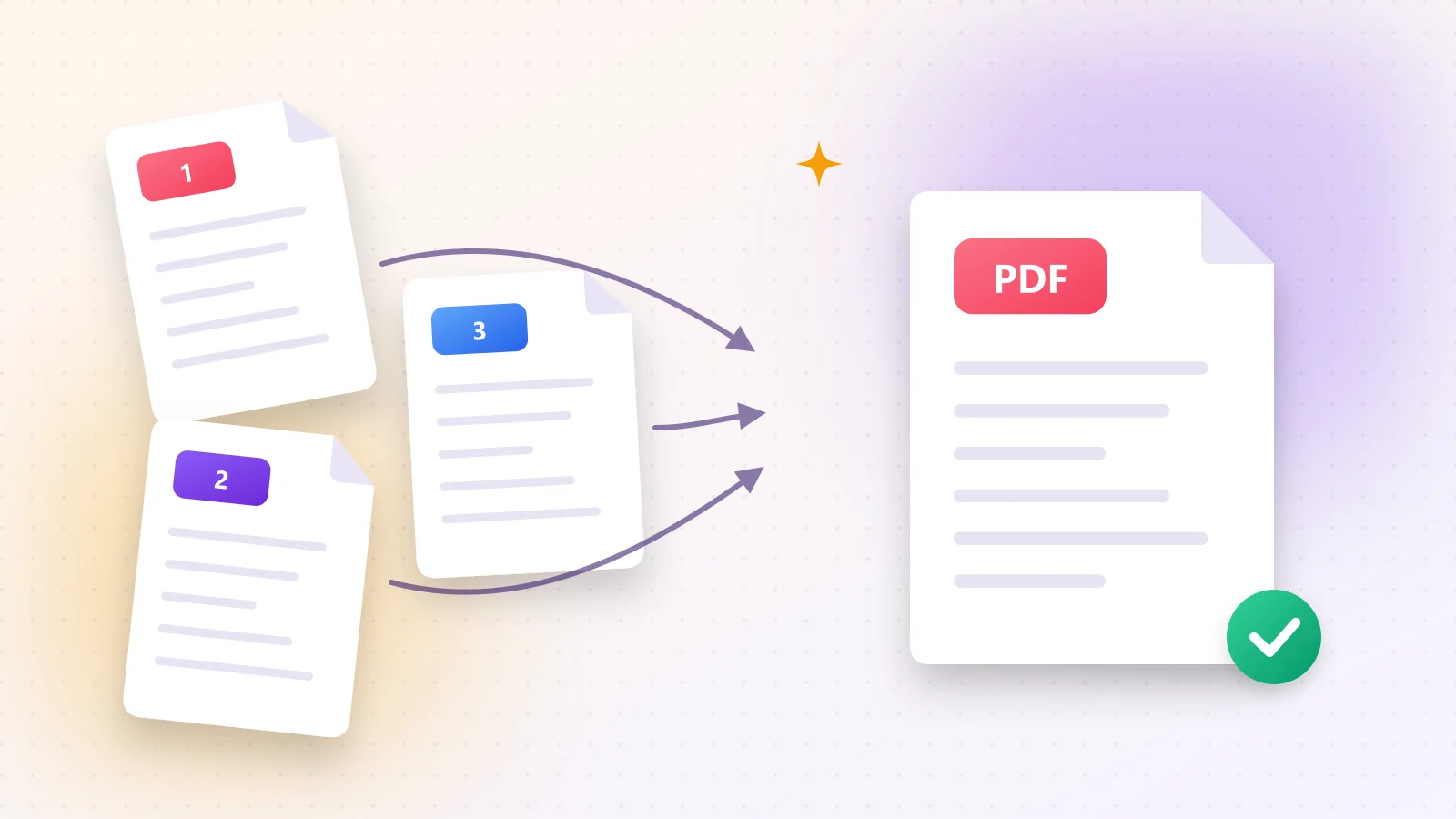
Applications, expense reports and school assignments often ask for one PDF. Instead of sending five attachments, merge them into a single, tidy document that is easy to read and easy to archive.
01Merge PDFs in 4 steps
- 1Step 1Open Merge PDF and select all the files you want to combine — or drop them on the page together.
- 2Step 2Drag the files into the right order. The first file becomes the first pages.
- 3Step 3Press Start to join them.
- 4Step 4Download your single merged PDF.
Try it now
Merge PDF
Combine multiple PDFs into one file.
02Get the order right
- Give files numbered names (01-cover, 02-letter, 03-cv) before you add them; they will line up automatically.
- Need to move single pages, not whole files? After merging, open Organize PDF and drag pages freely.
- Remove blank or duplicate pages with Delete PDF Pages.
03Is the merged file too big?
Several scanned documents together can exceed email limits. Run the merged file through PDF Compress — it usually shrinks dramatically without visible changes.
04The reverse: splitting
Sometimes you need the opposite. Split PDF breaks a long document into separate files by page range in seconds.
Frequently asked questions
As many as your device memory allows — dozens of normal documents are no problem.
No. Pages are copied without re-encoding, so the result looks exactly like the originals.
Remove the password first with Unlock PDF, then merge the files.
Was this guide helpful?
You finished the guide!
Next guide: How to Compress a PDF Without Losing Quality