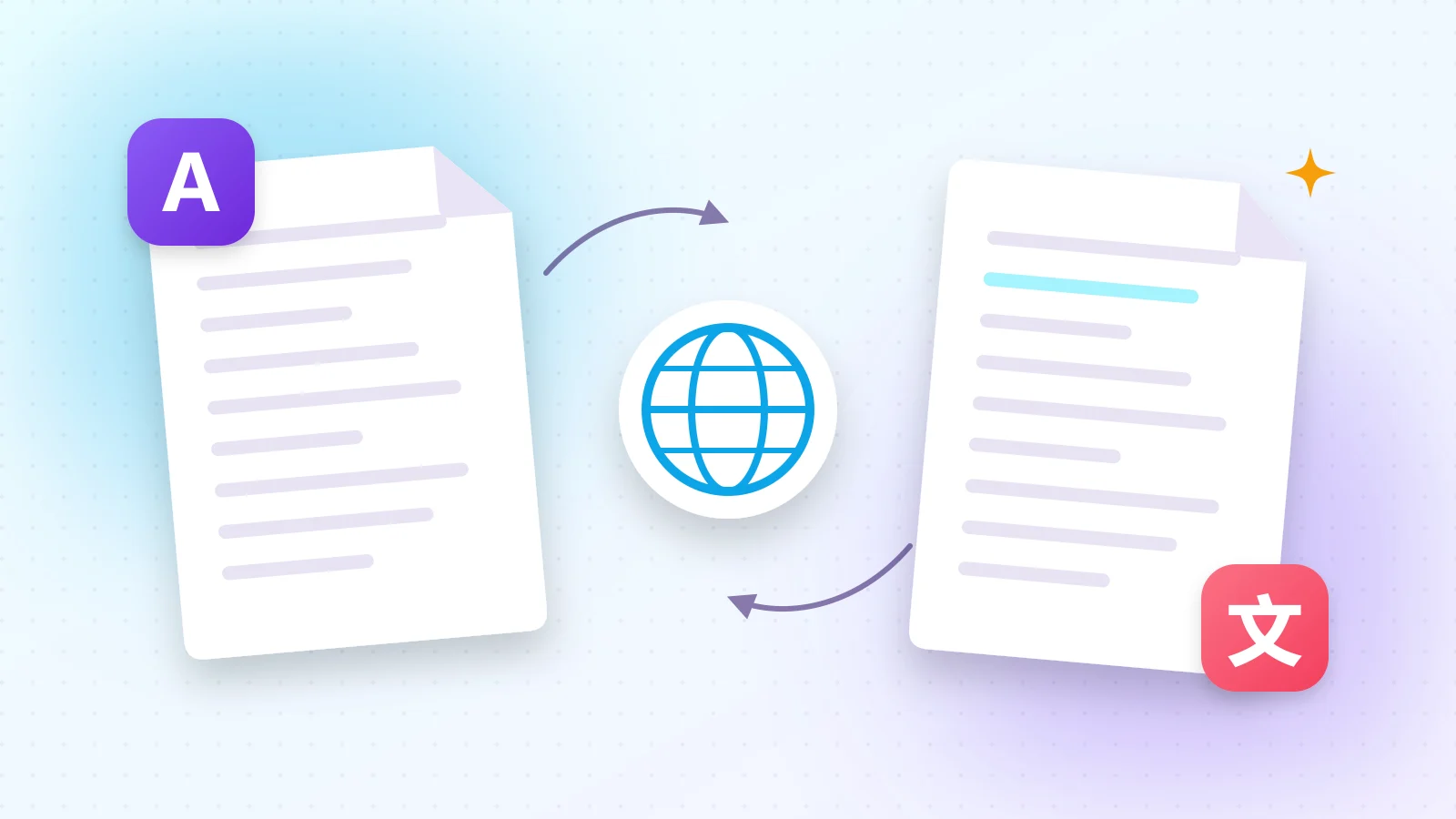
A user manual in German, a contract in English, a letter in Arabic — copying text into a translator paragraph by paragraph is slow and loses the structure. Translating the whole PDF at once keeps paragraphs together and saves a lot of time.
01Translate a PDF in 4 steps
- 1Step 1Open Translate PDF and choose the target language. The source language is detected automatically.
- 2Step 2Pick a tone: automatic, formal for business documents, or informal for friendly texts.
- 3Step 3Drop your PDF or paste the text.
- 4Step 4Switch between the translation and the original to compare, then copy or download it as Word.
02Get a better translation
- Clear, complete sentences translate better than fragments and bullet lists.
- If your PDF is scanned, run PDF OCR first so the text can be read.
- For photos of signs or pages, use Image to Text first.
03When to use a professional translator
Machine translation is excellent for understanding documents and for everyday communication. For official documents that need a certified translation — court papers, diplomas, immigration forms — use a sworn translator.
04Need only the essentials?
If you just want to know what a document says, PDF Summary gives you the key points directly in your language.
Frequently asked questions
All 15 site languages, including English, Turkish, German, French, Spanish, Arabic, Russian, Chinese and Japanese.
Paragraphs and headings are kept. You can download the result as a Word document to adjust the layout.
Yes. Translation is free with a fair usage limit.