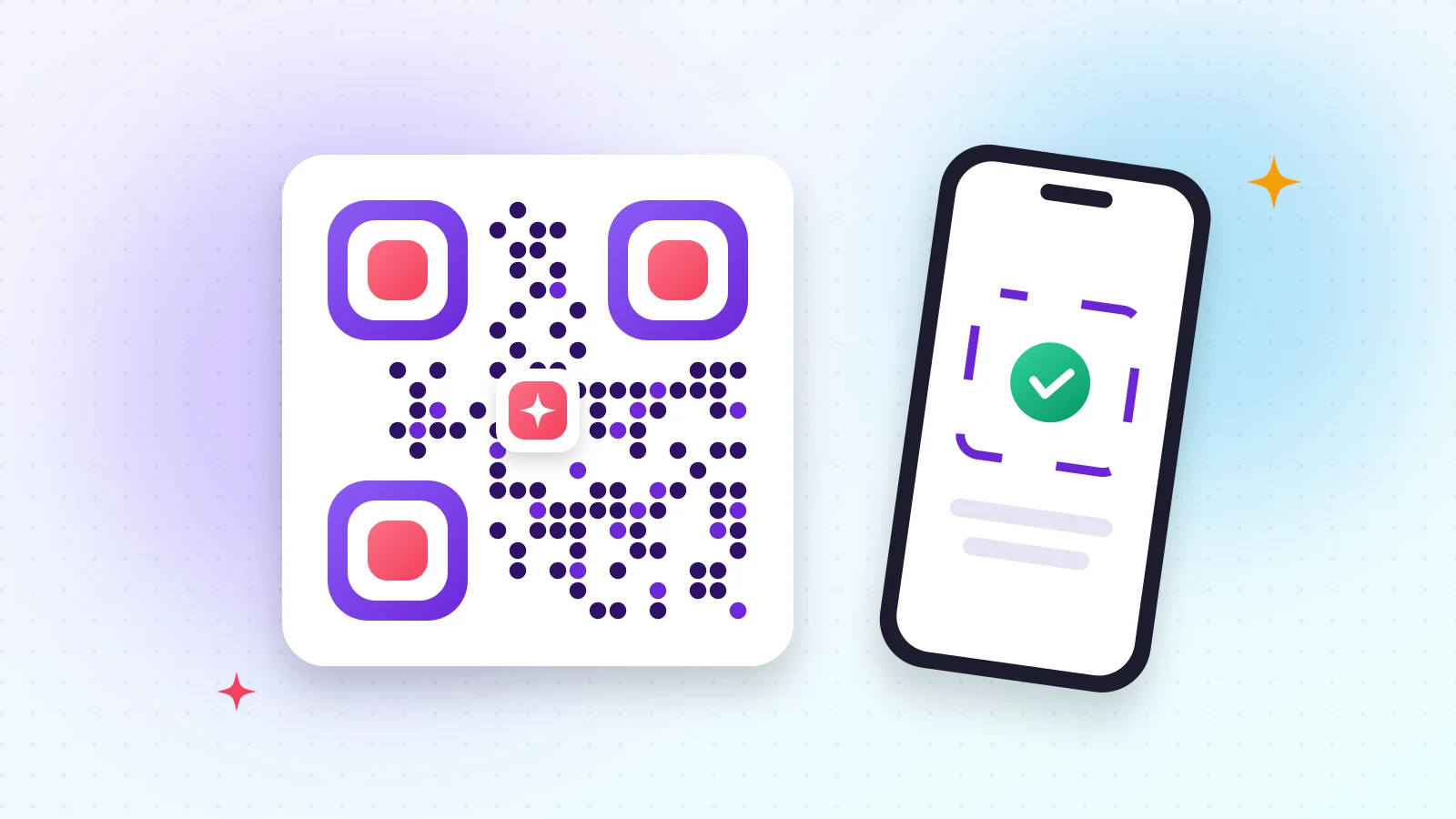
QR codes are everywhere: menus, business cards, posters, packaging and event tickets. A plain black square works, but a code in your brand colours with your logo in the centre gets noticed — and scanned — more often.
01What you can put in a QR code
- A website link, a menu, an online form or plain text
- Wi-Fi details so guests connect without typing a password
- A ready-to-send email or SMS
- A phone number that is dialled with one tap
02Create your QR code in 4 steps
- 1Step 1Open QR Code Generator and choose the type: link, Wi-Fi, email, phone or SMS.
- 2Step 2Enter your content — the preview updates live.
- 3Step 3Style it: pick colours or a gradient, rounded or classic dots, eye shapes and an optional logo or frame.
- 4Step 4Download as PNG for screens or SVG for print at any size.
Try it now
QR Code Generator
Create QR codes with a logo for links, text or Wi-Fi.
03Design rules that keep codes scannable
- Keep strong contrast: dark dots on a light background work best.
- Don't make the logo too large — it should cover well under a quarter of the code.
- Leave a quiet margin around the code; don't place text right against it.
- For print, use SVG or a large PNG so the dots stay sharp.
04Scanning codes
Got a QR code in a screenshot or photo? QR Code Reader decodes it right in your browser, or straight from your camera.
Frequently asked questions
No. The content is stored inside the code itself, so it works forever and needs no account.
Yes. The generator reserves space in the centre and uses error correction so the code still scans.
SVG — it is vector-based and stays perfectly sharp at any size.
Was this guide helpful?
You finished the guide!
Next guide: How to Password Protect a PDF