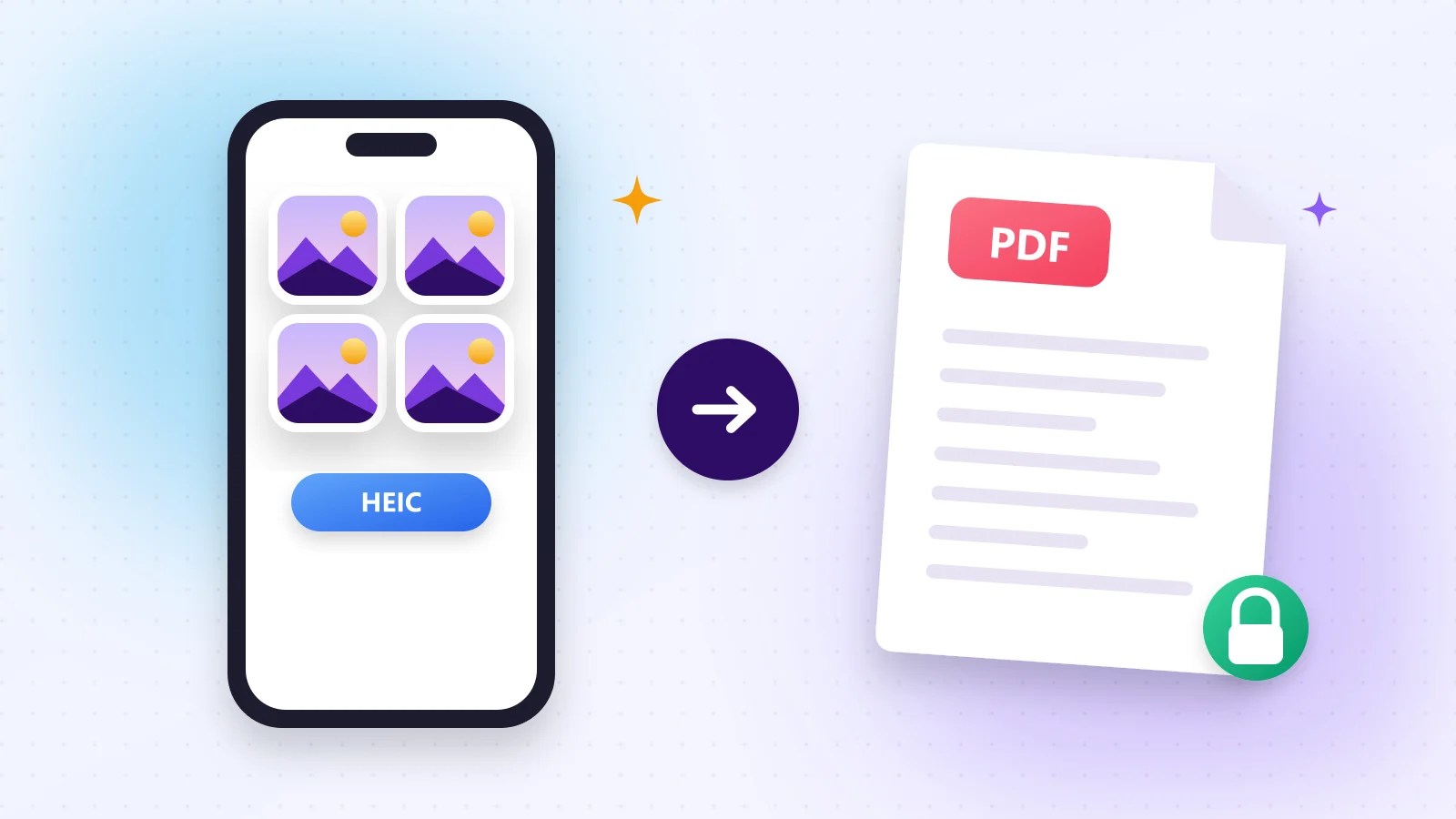
iPhones save photos as HEIC (also called HEIF, Apple's HEVC image format). It keeps photos small and sharp, but many offices, schools and websites only accept PDF. Most online converters solve this by uploading your photos to a server — not ideal for an ID card, a receipt or a medical report.
01Convert HEIC to PDF in 3 steps
- 1Step 1Open Image to PDF and drop your HEIC photos (on iPhone, choose them straight from Photos).
- 2Step 2Choose A4 for printable pages or keep the original size, and drag the photos into order.
- 3Step 3Press Image to PDF and download one tidy PDF.
Try it now
Image to PDF
Turn JPG, PNG, WebP and iPhone HEIC photos into one PDF.
02Why not just take a screenshot?
Screenshots lose quality and add phone bars. Converting the original HEIC keeps full resolution and clean pages.
03Useful next steps
- Need JPG instead? Use HEIC to JPG.
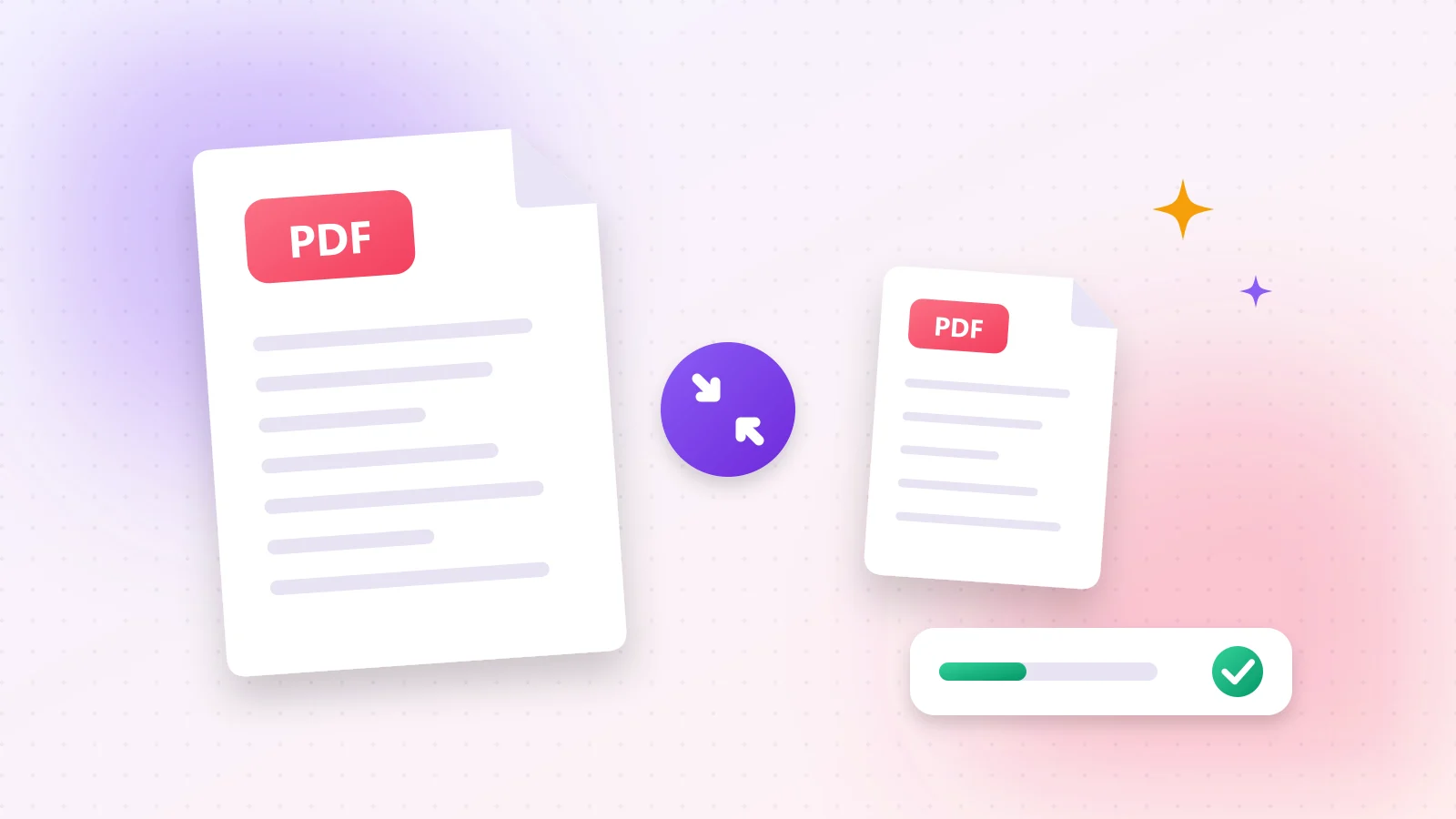
- File too big for an email or form? Shrink it with Compress PDF.
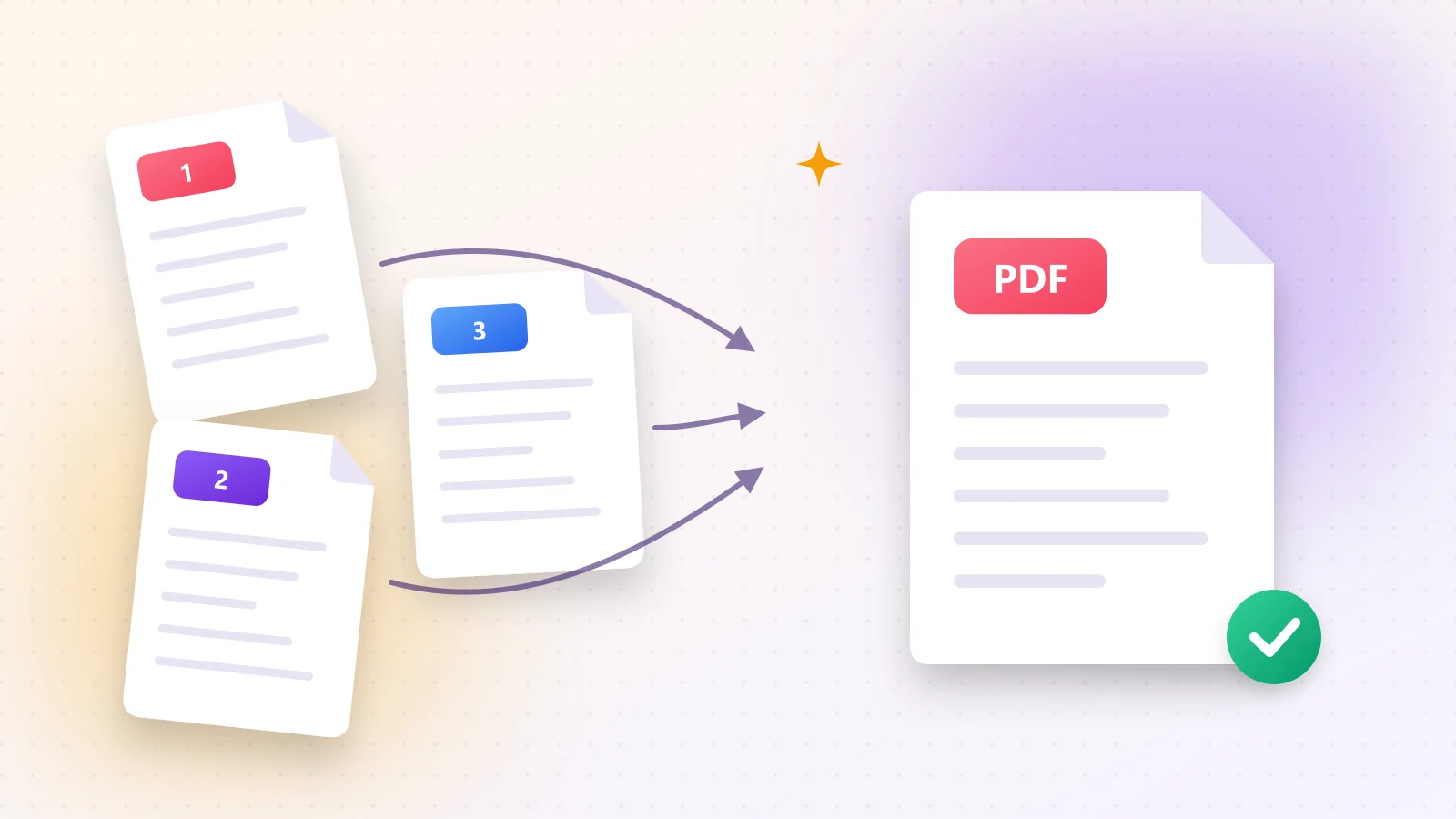
- Add more documents with Merge PDF.
Frequently asked questions
Yes. Open the site in Safari, choose your photos and download the PDF — no app needed.
No. HEIC photos are converted on your own device and never leave it.
Yes. Select several photos; each becomes a page in the order you choose.
Was this guide helpful?
You finished the guide!
Next guide: How to Merge PDF Files Into One Document