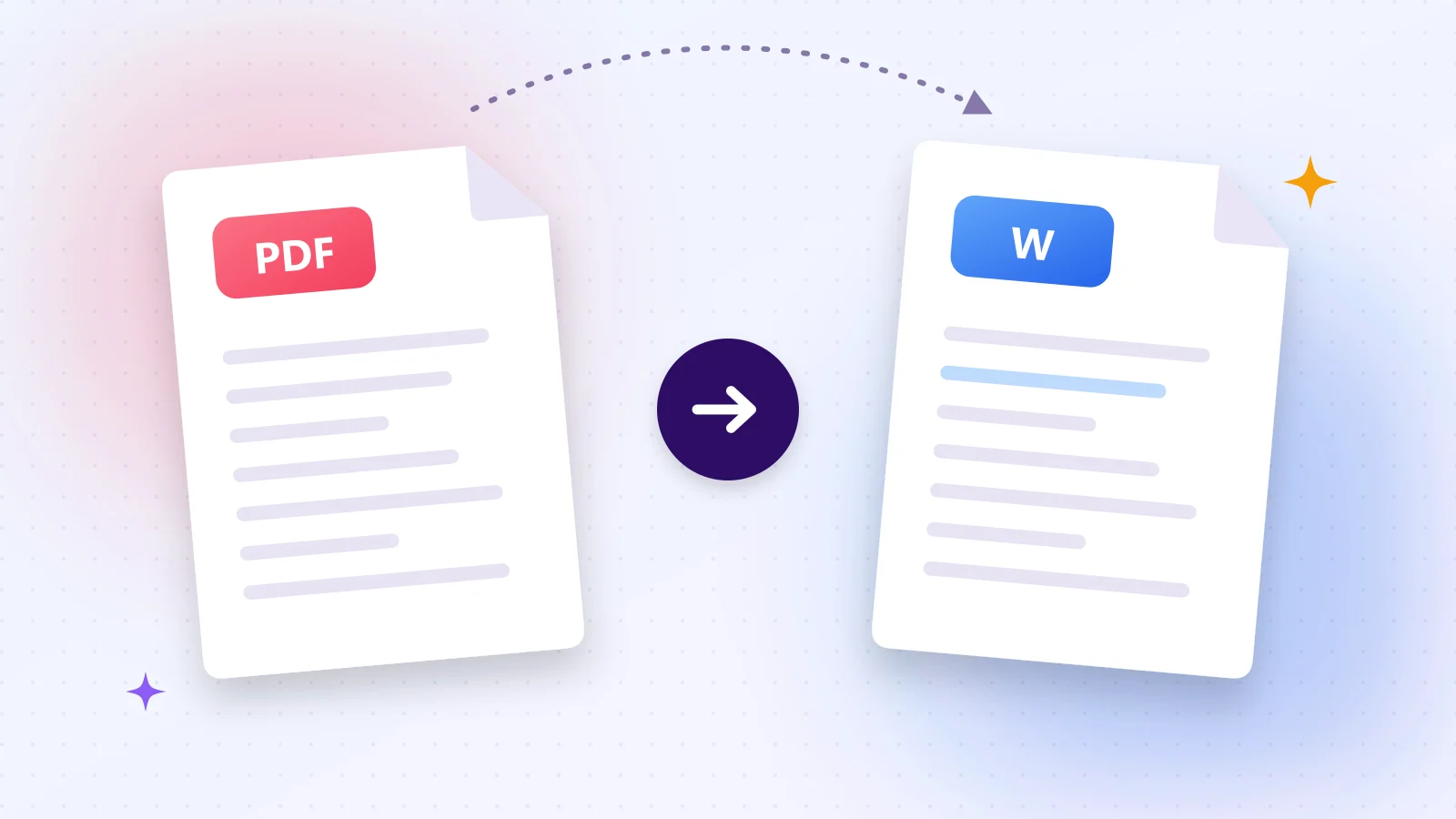
PDF is perfect for sharing, but painful to edit. When you need to update a contract, reuse text from a report or fix a typo in a CV, converting the PDF to Word saves you from retyping everything.
01What a good conversion keeps
- Paragraphs and line breaks, so text flows naturally when you edit it.
- Headings and the order of pages.
- Every character — including Turkish, German, Cyrillic and other accented letters.
02Convert PDF to Word in 3 steps
- 1Step 1Open PDF to Word and drop your PDF on the page.
- 2Step 2Press Start. The text is extracted page by page on your device.
- 3Step 3Download the .docx file and open it in Word, Google Docs or LibreOffice.
Try it now
PDF to Word
Convert PDF to an editable Word (DOCX) document.
03After converting
- Use the Styles panel in Word to quickly unify headings and fonts.
- When you are done, turn the document back into a PDF with Word to PDF so it looks the same everywhere.
- Need only a small change? Edit PDF lets you add text directly without converting.
04Why convert in the browser?
Contracts, invoices and CVs contain personal data. A browser-based converter processes the file on your own computer, so nothing is uploaded, stored or shared.
Frequently asked questions
Text, paragraphs and page order are kept. Complex designs with many columns or text boxes may need small manual touch-ups.
Yes — first run PDF OCR to recognise the text, then convert the result to Word.
Yes. The tool runs in any modern mobile browser, no app needed.
Was this guide helpful?
You finished the guide!
Next guide: How to Translate a PDF Into Another Language